Klaudius has always run on your own computer. That works well until someone else in your business needs to help: a teammate who edits the sites you've sold, publishes them to their domains, or answers the businesses that reply. Until now, each computer had its own copy of everything, so a site changed on one wasn't on the other, and two people could change the same site without knowing.
You can now run Klaudius as a team. Set up a teammate's computer from yours with a one-time code, and Klaudius keeps every computer in step: your businesses, their sites, the conversations about them, your own rules and the day's follow-ups. Only one computer works on a business at a time, so nobody overwrites anyone's changes.
Set up a teammate's computer with a code
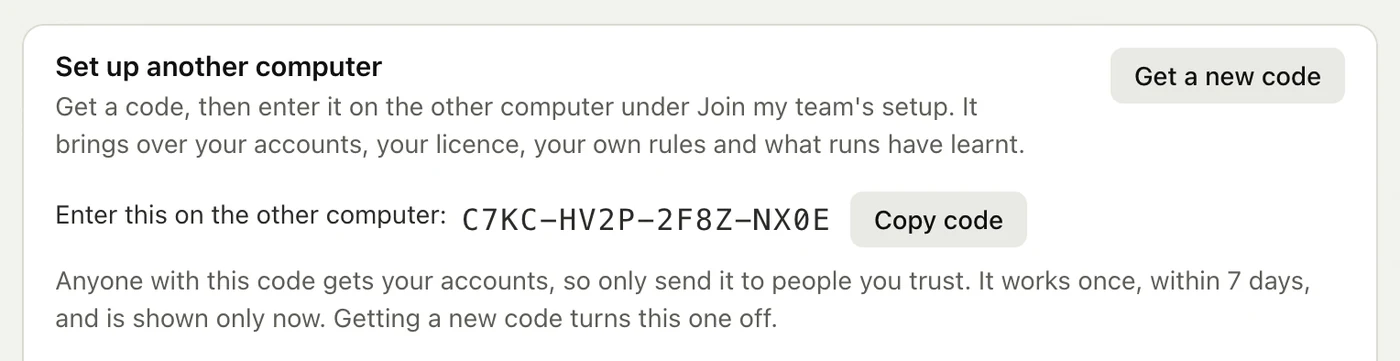
On your computer, open Settings → Setup, find Set up another computer and press Get a code. Send it to your teammate somewhere private. It works once, within 7 days.
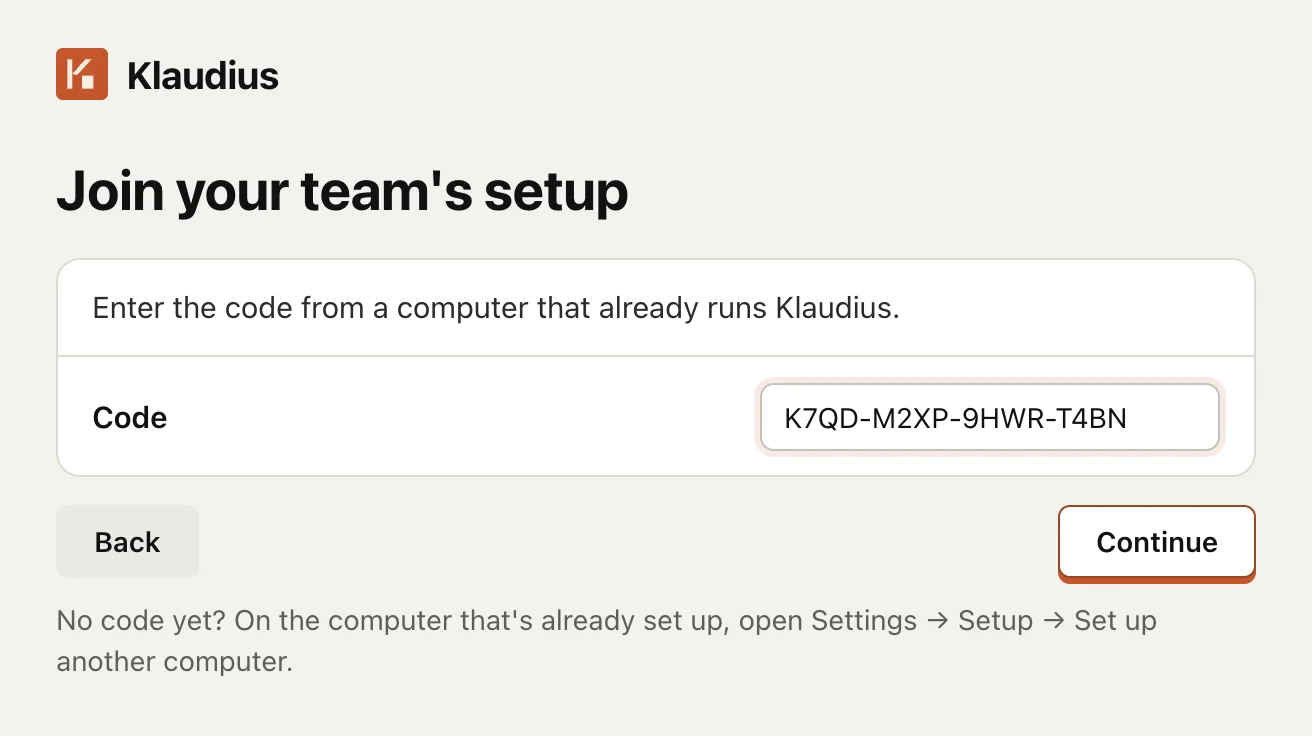
On their computer, they install the Klaudius app, choose Join my team's setup and enter the code. They pick their AI assistant and plan, and where the Klaudius folder goes, and that's it: their computer has your accounts, your licence, your own rules and what Klaudius has learnt on your runs.
One computer per business at a time
A business's site is shared once the business has replied or bought, or sooner if you open it in Pipeline and press Share with team. When someone starts work on a shared business, Klaudius first brings their copy up to date with the newest one. While they work, the other computers show who has it and wait, and when they finish, the change reaches everyone.
Publishing follows the same rule: a computer with an older copy of a site can't publish it over a teammate's newer one.
Pick up where a teammate left off
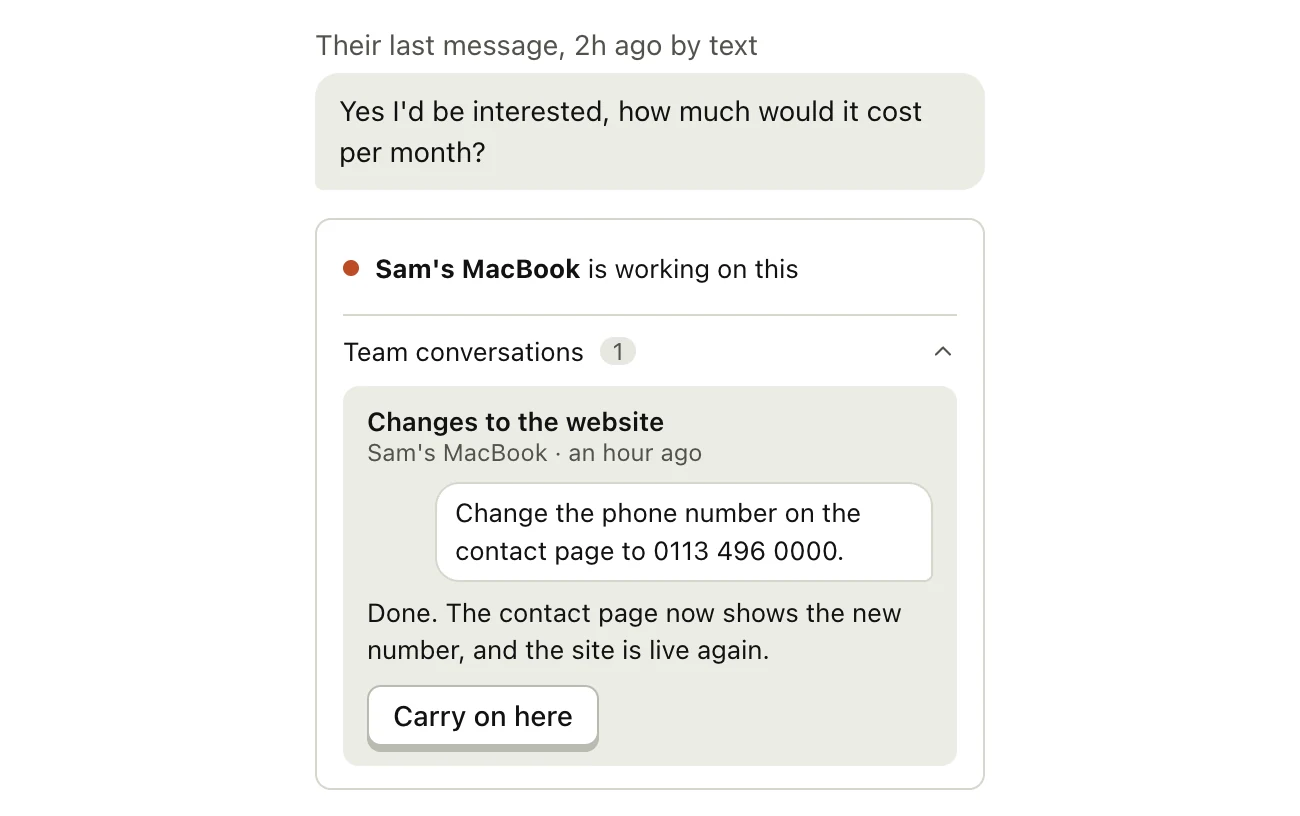
Open a business in Pipeline and press Team conversations to read what your teammates asked Klaudius about it. To continue one yourself, open it and press Carry on here: Klaudius picks up with what was said so far.
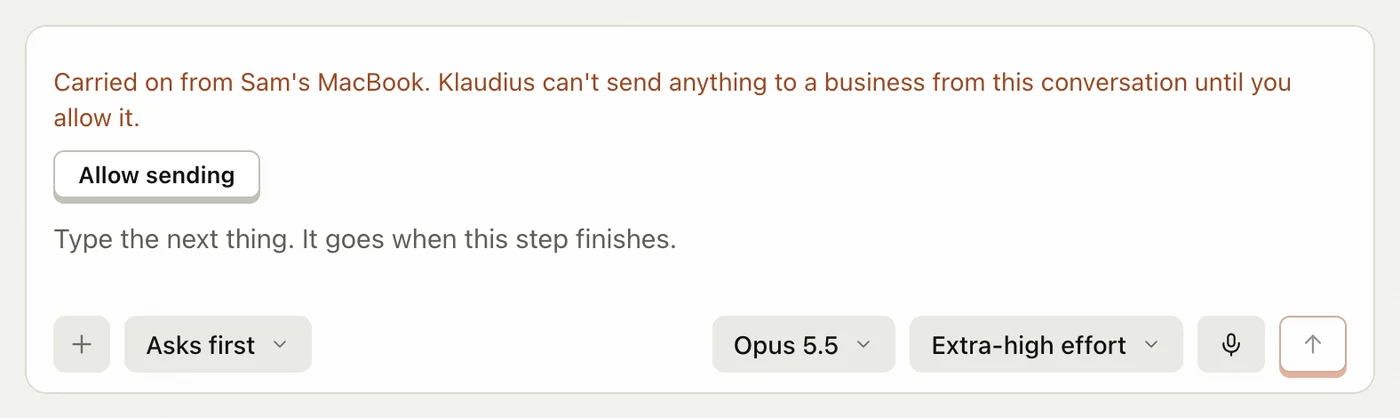
A conversation you carried on can't send anything to a business until you press Allow sending, so nothing goes out on a teammate's draft that you haven't read.
Follow-ups, rules and sending, in step
- Daily follow-ups. One computer writes them for all of them, and you can approve them in any computer's Inbox. Two people can't send the same follow-up. A few can only be sent from the computer that wrote them, and Klaudius tells you which.
- Your own rules, your wording and what Klaudius has learnt. A change on one computer reaches the others within a few minutes.
- A daily sending limit. Each mailbox sends up to 40 first emails a day, counted across all your computers, so adding computers doesn't multiply what your domains send. Past it, the rest wait for the next day. To change the number, ask Klaudius.
Each computer keeps a few things to itself: Where to work on the Runs page, so each of you can work your own towns, and conversations that aren't about a business, unless you press Share with team in one.
Setting it up
- On the computer that's already set up, open Settings → Setup, find Set up another computer and press Get a code.
- Send the code to your teammate, somewhere private.
- On their computer, install the Klaudius app, choose Join my team's setup and enter the code.
- They choose their AI assistant and plan, and where the folder goes, then press Set up this computer.
One subscription covers up to two computers at a time. To stop a computer sharing, open Settings → Setup on it and press Stop sharing. Using more than one computer in the docs covers it in full.