Most of the time you type to Klaudius in Conversations. Sometimes you'd rather just ask: who's waiting on me, how did this week go, bring up that site. That's what Jarvis is for, and it's now a real conversation rather than a voice command.
Jarvis now holds a real conversation. Click Talk to Jarvis at the foot of the sidebar, or press ⌘J on a Mac or Ctrl+J on Windows, and talk the way you would to a person. Jarvis answers out loud in a natural voice, keeps listening, and stops the moment you talk over it.
Just talk, from any screen
Jarvis opens in a small card in the corner of whatever you're looking at, so you can keep working while you talk. There's nothing to press between turns: it hears when you've finished, answers, and listens again. Its words appear in the card as it says them.
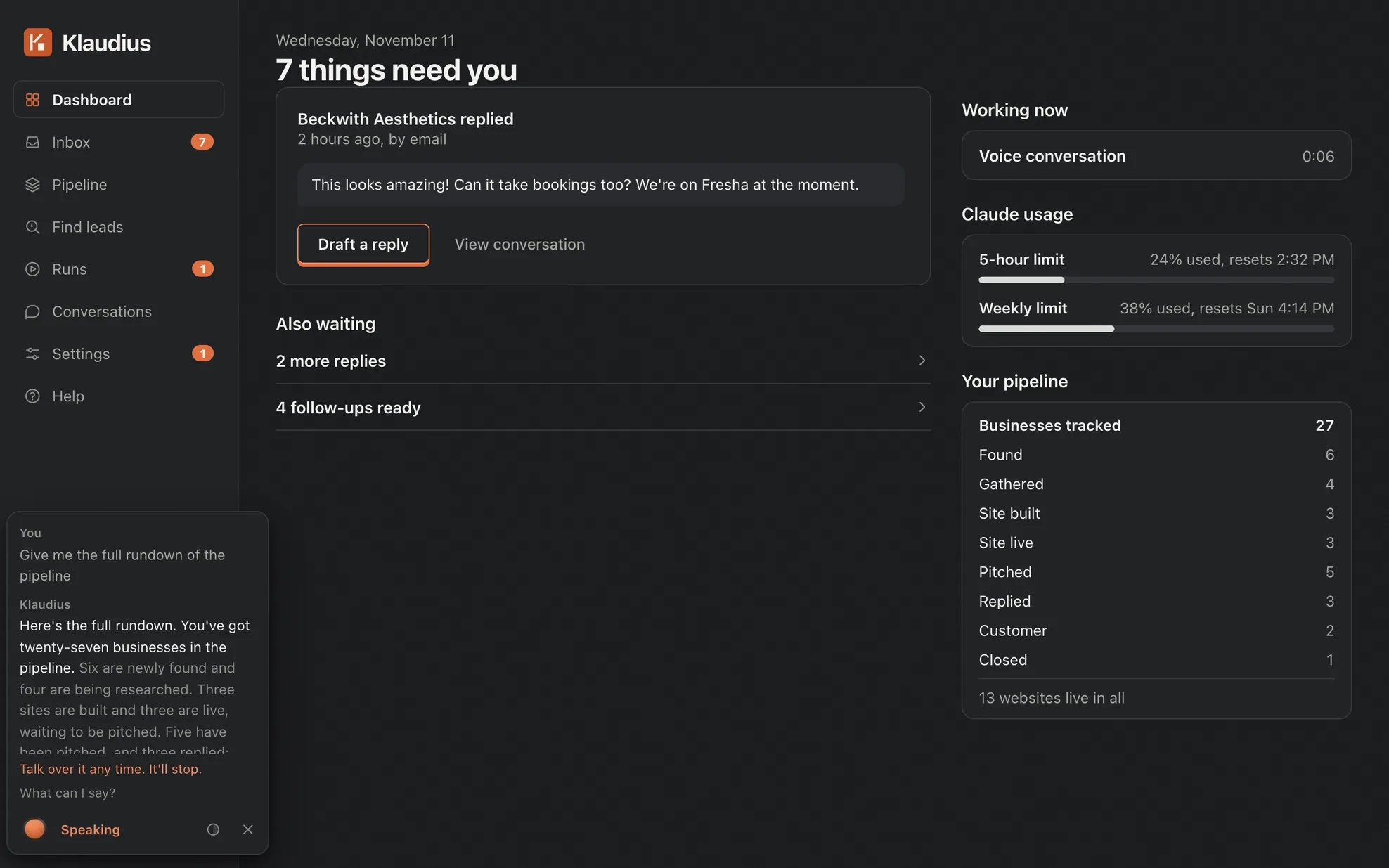
Not sure what to ask? What can I say? in the card lists things to try, from "Who's waiting on a reply from me?" to opening one of your clients' websites by name.
Talk over it, like you would a person
Start talking while Jarvis is answering and it stops to listen, catching what you say from your first word. Change your mind while it's working something out and it follows the new question. "Stop" or "never mind" cuts it off. Tap the orb to pause, and tap it again to carry on from where it stopped.
It works the app for you
Ask about your business and Jarvis looks it up in your own pipeline rather than guessing: who replied, which sites went live, what's running right now. Ask to see something and it happens on screen: a client's website opens, or the Pipeline or Inbox comes up with the businesses it means highlighted. "This one" means the business you have open.
Bigger jobs go where they belong. Ask Jarvis to draft a reply and it starts that in Conversations, where you check it before anything is sent. It can start a run too, if you ask.

One natural voice, for runs too
Jarvis speaks in a natural voice. Choose from four in Settings → Voice, and hear each one first. The same voice can tell you when a run finishes or needs your approval while you're busy with something else: switch on Announce runs out loud in the same place. It stays quiet while you're talking to Jarvis, then sums up what you missed.
Your voice stays on your computer
Speech recognition runs on your computer, so your voice never leaves it. Only your words go to your AI plan, as when you type. The voice and the speech recognition download once, the first time you open Jarvis.
Try it
Jarvis is in the Klaudius desktop app on Mac and Windows, included with every plan. Update the app, then click Talk to Jarvis or press ⌘J (Ctrl+J on Windows). Jarvis in the docs has the detail.